




Using the YouTube Website
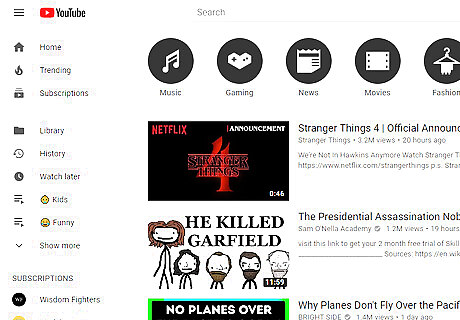
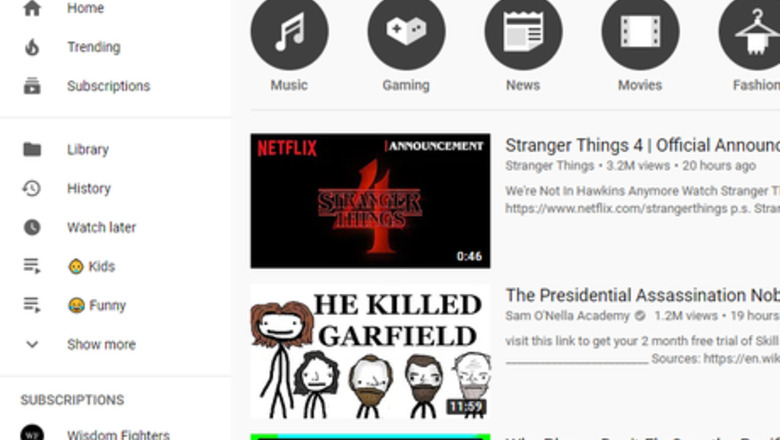
Load up the YouTube website. Go to www.youtube.com in your preferred web browser.
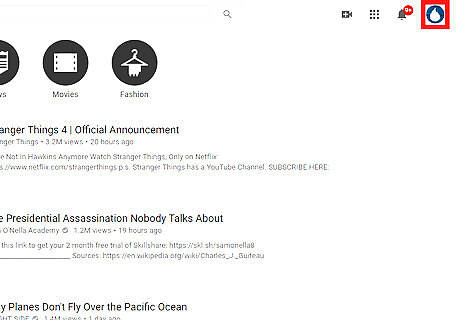
Click your user profile picture (if signed in) or the ⋮ symbol if signed out. One of the two controls will be present at the top-right corner of the webpage. The ⋮ symbol is the one on the webpage. Don't confuse it with the identical Google Chrome "Customize and control Google Chrome" button.
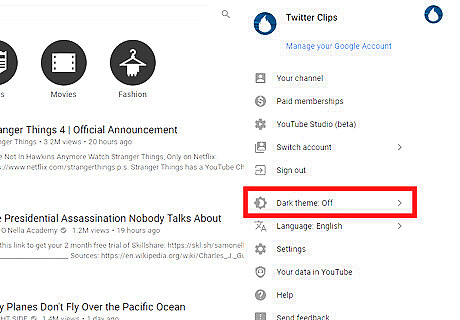
Click Dark Theme: Off. It contains a crescent icon.
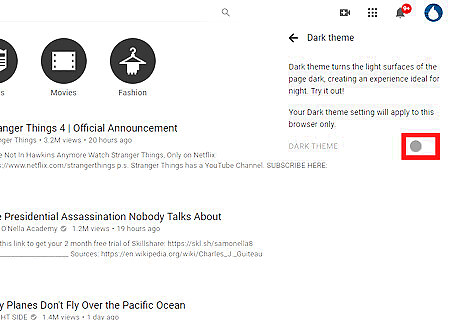
Enable dark theme. Toggle the slider next to “DARK THEME”.
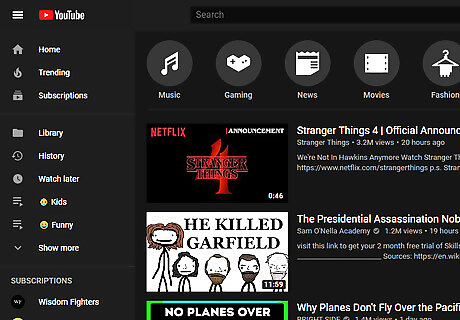
Finished. The background of YouTube will darken. To turn off dark theme and switch back to the light theme, re-access the setting and toggle off the slider.
Using the YouTube App for Android
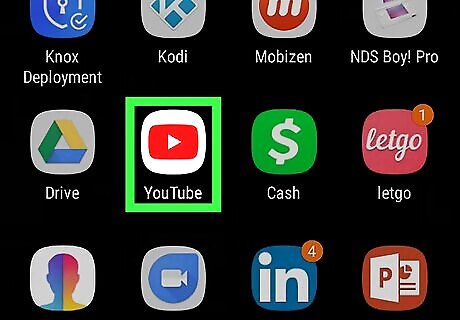
Launch the YouTube app on your Android device. It's a white play button on a red background. Make sure that your app is up to date.

Tap on your profile picture. You can see it in the top-right corner of the app. This will open the menu tab.
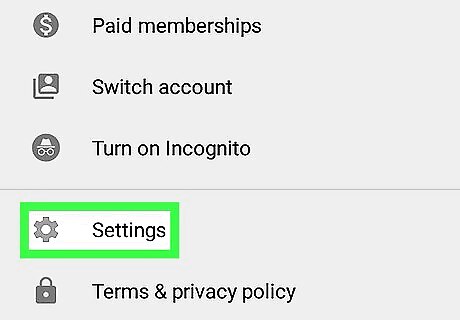
Tap on Settings. You will see this option under the “Turn on Incognito” label.
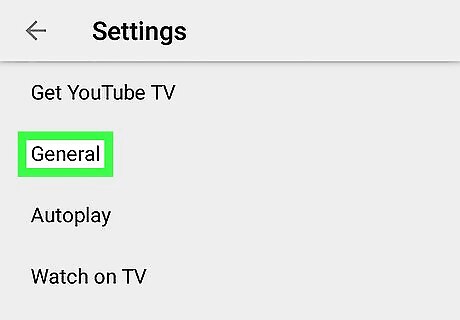
Select the General option. It will be the first option in the list.
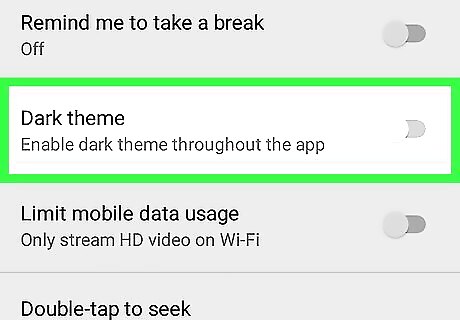
Tap on the grey switch, right across Dark theme text. After doing so, YouTube's white background will switch to black.
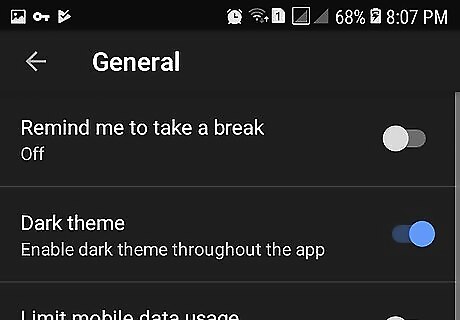
Enjoy YouTube in dark mode. If you want to disable the feature, just tap the Dark theme switch once again. That's it!









Comments
0 comment